
Open
Load the SVG and preview the original vector artwork
The file preview keeps the original SVG visible before any edits are applied, so visitors can verify the uploaded icon or illustration before they start changing colors.

Upload an SVG icon, logo, or illustration and change its colors visually. Detect fills, strokes, and inline styles, replace individual colors, shift the whole design with global controls, preview the result, and download the recolored SVG. No login required.
An SVG color changer detects color values inside an SVG file and lets you replace them visually without editing the markup by hand. Free Color Tool can find fill, stroke, and inline style colors, preview replacements, apply global color adjustments, and download the recolored vector as an SVG.
Upload an SVG and the tool scans its fill, stroke, and inline style colors, including colors inside nested elements. Every detected value becomes an editable swatch, so you can recolor SVG artwork one color at a time instead of searching through markup.
Need a new mood rather than one small color swap? Adjust Hue, Saturation, Brightness, and Temperature across the artwork together. It is a faster way to explore brand directions, seasonal variants, dark or light treatments, and warmer or cooler versions.
The preview updates as you adjust the controls, so you can compare the new direction before committing to a download.
A simple SVG color changer replaces one swatch at a time. Smart Recolor gives you another route: generate a fresh color direction while preserving each original color's luminance relationship, helping shadows stay darker and highlights stay lighter as the hues change.
Try a new color direction without worrying about losing the previous one. Individual edits and committed slider changes are added to the undo history, so you can move backward or forward before exporting the final SVG.
For a straightforward recolor, you do not need to edit SVG code by hand.
Open your icon, logo, or illustration. The tool scans the file and lists the colors it can edit from fills, strokes, and inline styles.
Replace individual swatches for precise changes, or use the global sliders and Smart Recolor when you want to shift the entire visual direction.
Compare the result, undo anything you do not like, reset if needed, and download the updated SVG when the colors are ready.
These real product screenshots show the SVG color changer from upload through detected colors, Smart Recolor, global adjustment, preview, and final download.
The file preview keeps the original SVG visible before any edits are applied, so visitors can verify the uploaded icon or illustration before they start changing colors.
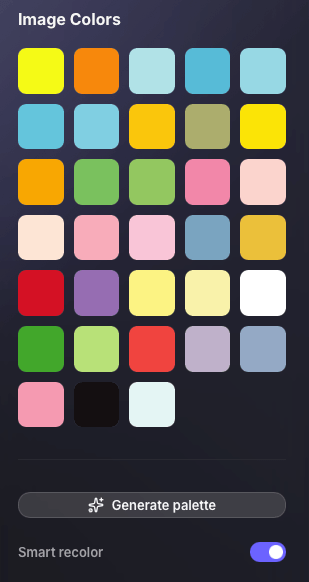
The side panel surfaces detected SVG colors, lets users generate a fresh direction, and exposes Smart Recolor controls so an icon or illustration can move into a new color treatment quickly.
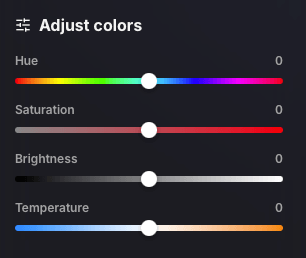
Global sliders make it easy to warm, cool, brighten, darken, or saturate the full illustration without editing each shape manually, which is especially useful for rapid brand exploration.
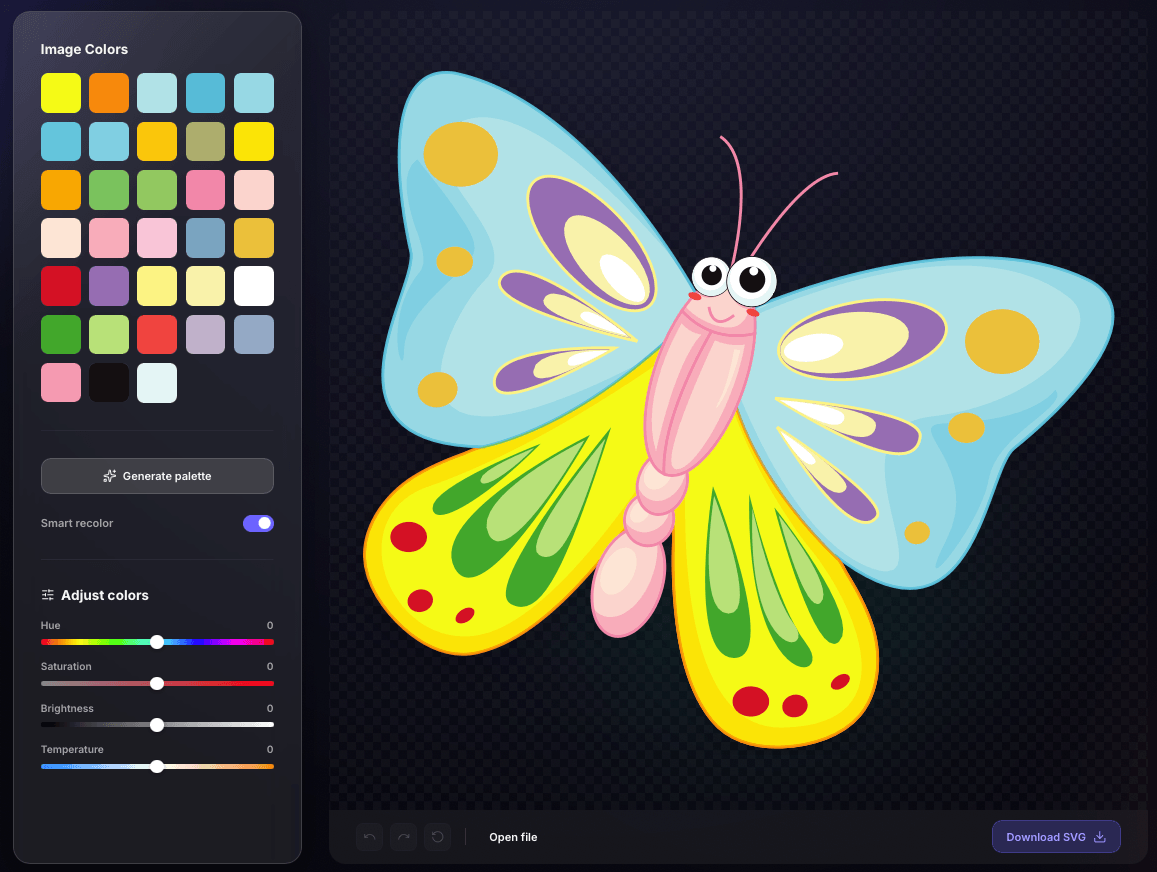
The final preview combines the detected colors, smart recolor tools, manual adjustments, and the updated vector artwork so users can verify the new direction before downloading the production-ready SVG.
An SVG color changer is the faster choice when the artwork itself is correct and only the colors need work. A full SVG editor is better when you also need to redraw paths, edit text, reorder elements, or change the vector structure.
Need to change SVG color online for an existing vector that is structurally right but visually off-brand? This workflow is built for brand updates, interface assets, campaign variations, illustration systems, and developer-ready SVG handoff.
Quick answers about SVG color change online, editing fills and strokes, preserving vector quality, and choosing the right SVG color editor workflow.
Upload the SVG, choose one of the detected colors, select a replacement, and preview the change immediately. Repeat this for individual colors or use the global controls to shift the whole design before downloading the updated SVG.
Yes. The SVG color changer gives you visual controls for detected fill, stroke, and inline style colors, so you do not need to search through SVG markup manually.
Yes. Use the hue, saturation, brightness, and temperature controls to change the overall direction of the artwork, or use Smart Recolor to create a new treatment while preserving light and dark relationships.
No raster conversion is required for this recolor workflow. The downloaded result remains an SVG vector file, so it stays scalable after the color values are changed.
Not exactly. This tool is focused on color editing. It is ideal for changing fills, strokes, and the overall color mood, but it is not intended for drawing new paths, editing text, or restructuring vector shapes.
The tool works best with valid SVG files whose visible colors are defined in fill, stroke, or inline style attributes. SVGs that rely on external CSS, embedded raster images, or complex effects may need additional editing.
Upload the vector, recolor the parts you need, preview the result, and download the updated SVG.
Recolor Your SVG